Showing posts with label dispatcher game. Show all posts

Tuesday, October 13, 2015

DigiTrains 2.9 on Play: Domino Dispatcher design

Dispatcher game: Domino


New design is available for dispatcher game: Domino.


You can choose from more design in dispatcher game. Select the menu icon in the top right corner to change design:


On tablets:                         

On phones: 


In Domino design the use of Common accessory button and Unlock route button is different. You do not have to hold the buttons for 2 hand accessory change.

Use of the buttons if Adv. (Advanced security logic) is off:


· Unlock Route button releases all routes (KO)
· Common accessory button is not functional


Use of the buttons if Adv. is On:
· Unlock routes button releases routes by double touch
· Press Unlock routes button first. You can see it is on, because it lits. Then press the endpoint of an active route. The route will be released. Unlock routes button goes off.
· Accessories can be changed only if the Common accessory button is touched and set on (it lits). Then touch an accessory, it will change. The common accessory button will go off automatically.


Block occupancy release

Occupied blocks get only free after 2 seconds of unoccupied state.

Z21 Locomotive options bug fix

For Z21 users Locomotive options menu crashed in DigiTrains 2.8. Now this bug is fixed.

Tuesday, June 9, 2015

Automatic signal change depending on occupancy feedback

dispatcher game: automatic signal change depending on occupancy feedback


In layout editor after you select the block for red and press save, the highlighted track will go back to white.


At this point you can select signals to change automatically when this block is occupied. Touch the signal to select it with red rectangle. Long-touch the signal to change its status. This status represents how to set it when the block is occupied. If you ready with the selections, press the save button again. After that you can set the address and input of the bock.


During the game when the block becomes occupied, the signals will be set automatically. This way a signal can be set to red when a train passes it (using the next block after the signal).
Important notice: this automatic change happens only on the layout loaded currently. If you have a big layout and it is made in more layouts in DigiTrains and you want the automatic signal change to happen on all layouts in the current profile, then you need to set this option by pressing the top right “block” icon  in the header (highlighted with red rectangle).


If you enable the checkbox, then Digitrains will set signals belonging to occupied blocks on all of your layout in the current profile.


During thegame you can navigate to other menus. You can drive a train, Digitrains will take care of the signals in the background. 

Wednesday, January 14, 2015

DigiTrains 2.3 available for download

DigiTrains 2.3 new features:

-Speed display in km/h or mph
-Search option in Train list, Accessories and Routes
-Locomotives can be assigned to groups
-New route building logic in dispatcher game

Details:


SPEED DISPLAY IN KM/H OR MPH

The speed of a train can be displayed in speedsteps, in km/h or in mph. To configure the speed display press the speed on Train control menu.


You have four possible choices:


1.   Show speedstep:No speed conversation. Just show the actual speed step.

2.   Automatic: Using a default conversation from speed steps which fits for most of the models. For more accurate speed display please select one of the other options.

3.   Use current speed: start your locomotive and increase the speed until you estimate it goes with 40 km/h (or 25 mph). Then come into this menu and press the tick to match 40 km/h (or 25 mph) for your current speed step. For more accurate speed display please select one of the other options.

4.   Calculate: Measure and select one meter (100cm) on your track (1 meter equals 1.1 yard, which is 1 yard and 1 span approx.). Accelerate your train outside of the selected block to 50% of the speed (to speed 7 in 14 speedstep mode, to speed 14 in 28 speedstep mode, to speed 63 in 128 speedstep mode). Keep this speed and with a stopper measure how much time (in seconds) it takes for the train to go along the 1 meter selected track. Type in the measured time into the editbox below. For more accurate speed display please select longer track. For example you can select 5 meters and measure the time on this longer block. At the end please devide the outcome with 5 (if you used 5 meters). You may also measure the time several times and count average.


Furthermore you can choose the unit of the speed: km/h or mph. These parameters can be set individually for each locomotive. The above mentioned speed display works properly in case of using linear speed settings in locomotive CVs. 


SEARCH OPTION IN LISTS

There is a search icon in bottom of the Train list, Accessories and Routes menu. You can filter the list for names or address based on the sort type.


Type in the address or name what you search for. The program will search for names or addresses contains your string. In case of Train list you can filter for groups or moving locomotives, too.


It shows the filtered list in case of any result.


NEW ROUTE BUILDING LOGIC IN DISPATCHER GAME

1.    Turnouts are changed first.
2.   Route path is colored to green on layout editor screen.
3.    Signal belonging to route change to green (free to go).


LOCOMOTIVE GROUPS:

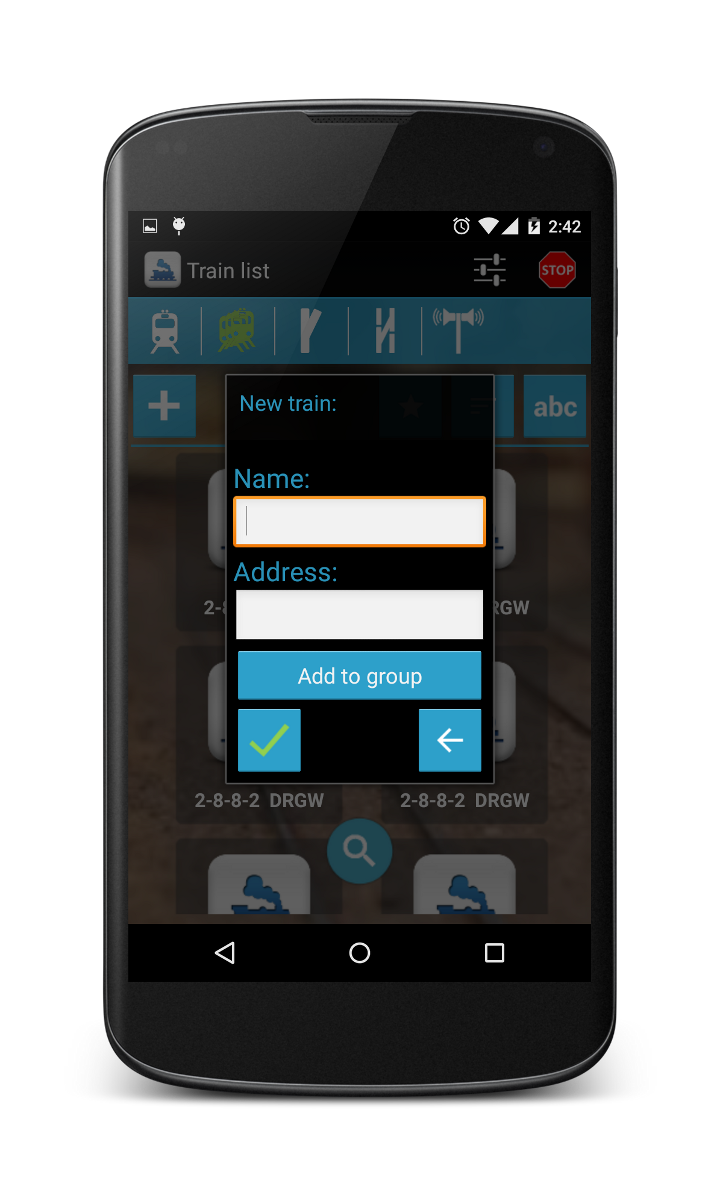
You can assign your locomotives to groups. With this you can filter the train list. In case of adding a new locomotive or changing it there is a button “Add to group”. By pressing this button you can add it to an existing or new group. If you do not select a group it will be assigned automatically to group “All”.


The locomotives downloaded from JMRI will be assigned to the JMRI group if exists. In DigiTrains one train can only belong to one group, so if it is assigned to more groups in JMRI in DigiTrains it will be only showed in the first group.

Tuesday, January 6, 2015

Module layout for testing DigiTrains

In the last year I not only developed DigiTrains but also created a modular layout to play and for test DigiTrains. The modules are stored in the basement and put together in my living-room for a day in every month. The assemble and disassemble time is approximately 90-90 minutes. 6 person can play at the same time, 2 dispatchers using tablets and 4 engine drivers. Of course we play with DigiTrains, so I can also test the new features.

Full album can be viewed here...


Friday, December 19, 2014

DigiTrains gameplay video: advantage of quick-list

This video shows how easily you can control a 3 platfrom station and 3 engines using some of the special features of DigiTrains: quick-list, functions icons, dispatcher game with layout editor, station speaker, etc.