Showing posts with label jmri wifi throttle. Show all posts

Tuesday, June 2, 2015

DigiTrains 2.7 on Play

DigiTrains 2.7 release notes

dispatcher game: automatic accessory change based on occupancy
There is a new function in dispatcher game. If a block becomes occupied specified accessories (signals) can be changed automatically by DigiTrains. This useful for example to change a signal to STOP if a train goes by. 

Locomotive control with gamepad
Locomotives can be controlled with android compatible bluetooth gamepads.


Dispatcher game advanced logic: protective turnout
Protective turnouts belonging to an active route cannot be changed until the route is released. 

New locomotive picture
This is a bug fix. When you created a new picture for a locomotive its old picture was caches in some menus and did not change until program restart. Now it will be refreshed immediately.


Friday, May 8, 2015

DigiTrains on JMRI webpage

I am proud to tell you, that DigiTrains is now presented also on JMRI webpage due to the lots of users who uses DigiTrains with JMRI to control their digital model railway layout.


www.jmri.org


Wednesday, March 4, 2015

DigiTrains 2.5 available on Play

DigiTrains 2.5 release notes


Suggested steps to create your layout

1.    Put tracks and turnouts onto the gridview
2.    Add all your accessories in Accessory menu (turnouts, lights)
3.    Compare the turnout states in Accessories menu to the real layout. When your turnout is closed on your layout it must be also closed in DigiTrains. If not, long-touch the turnout and enable “Reverse accessory status” option.
4.    Match your accessories in the layout editor. Long-touch the grids where you have an accessory and select the desired accessory from the pupup menu.
5.    Now switch to command mode with the pencil icon (it must be white). Disable “Adv.” button (Advanced security logic). Touch the turnouts on the screen and compare them to the real layout. They must show the same. (For this the dispatcher game in-app product must be purchased)
6.    If any of the turnouts shows the opposite compared to the real state: long-touch the turnout in editor mode and select “Show cross part of turnout as  straight on layout”.
7.    When all of your turnouts are OK you can start to add routes. When you select a route in command mode, and not all of the turnouts are changing please check try to increase the switch delay parameter in Accessories menu for your turnouts. Long-touch the accessory in Accessories menu and type in 600 for “Switch delay”.
8.    When all of your routes are working fine, you can add block for occupancy feedback.

dispatcher game: new turnout configuration option

In layout editor the straight (Closed) state of a turnout is always the horizontal or vertical line of the turnout. Default the line in 45 degree is the curved (throwed) state. On the screenshot below you can see turnouts marked with red, where this logic is not good. On the real layout the straight state of the turnout must be shown with the 45 degree line, not the horizontal or vertical.
In this case the following must be done to achieve proper visual feedback of a turnout in layout editor and in Accessories menu as well:
Long-touch the turnout in layout editor to edit it and select “Show cross part of turnout as straight in layout”


Speed display: use current conversation bug fix

Bug fix for speed dislay when Use current is activated. Now you can change speedsteps even after selecting current speed and conversation is done automatically by DigiTrains.


Dispatcher game: adjustable grid size

Adjustable grid size in dispatcher game. 3 different size can be used depending on which is more comfortable to you. This way you can use it on your phone, tablet or even FullHD android miniPC.


Big grid:


Medium grid:


Small grid:


dispatcher game: optimized block occupancy feedback screen refresh

Tuesday, February 3, 2015

DigiTrains 2.4 available on Play

Version 2.4 release notes

Optimized tablet view in train control menu

Optimized resource management on tablets. Station speaker deprecated in tablet train control menu, which is more responsive now.

Modified protective turnout logic for routes in dispatcher game


Modified logic in dispatcher game when protective turnouts used in routes: route can be set now if a protective turnout of that route is occupied or selected for another parallel route but has the same status.

Wednesday, January 14, 2015

DigiTrains 2.3 available for download

DigiTrains 2.3 new features:

-Speed display in km/h or mph
-Search option in Train list, Accessories and Routes
-Locomotives can be assigned to groups
-New route building logic in dispatcher game

Details:


SPEED DISPLAY IN KM/H OR MPH

The speed of a train can be displayed in speedsteps, in km/h or in mph. To configure the speed display press the speed on Train control menu.


You have four possible choices:


1.   Show speedstep:No speed conversation. Just show the actual speed step.

2.   Automatic: Using a default conversation from speed steps which fits for most of the models. For more accurate speed display please select one of the other options.

3.   Use current speed: start your locomotive and increase the speed until you estimate it goes with 40 km/h (or 25 mph). Then come into this menu and press the tick to match 40 km/h (or 25 mph) for your current speed step. For more accurate speed display please select one of the other options.

4.   Calculate: Measure and select one meter (100cm) on your track (1 meter equals 1.1 yard, which is 1 yard and 1 span approx.). Accelerate your train outside of the selected block to 50% of the speed (to speed 7 in 14 speedstep mode, to speed 14 in 28 speedstep mode, to speed 63 in 128 speedstep mode). Keep this speed and with a stopper measure how much time (in seconds) it takes for the train to go along the 1 meter selected track. Type in the measured time into the editbox below. For more accurate speed display please select longer track. For example you can select 5 meters and measure the time on this longer block. At the end please devide the outcome with 5 (if you used 5 meters). You may also measure the time several times and count average.


Furthermore you can choose the unit of the speed: km/h or mph. These parameters can be set individually for each locomotive. The above mentioned speed display works properly in case of using linear speed settings in locomotive CVs. 


SEARCH OPTION IN LISTS

There is a search icon in bottom of the Train list, Accessories and Routes menu. You can filter the list for names or address based on the sort type.


Type in the address or name what you search for. The program will search for names or addresses contains your string. In case of Train list you can filter for groups or moving locomotives, too.


It shows the filtered list in case of any result.


NEW ROUTE BUILDING LOGIC IN DISPATCHER GAME

1.    Turnouts are changed first.
2.   Route path is colored to green on layout editor screen.
3.    Signal belonging to route change to green (free to go).


LOCOMOTIVE GROUPS:

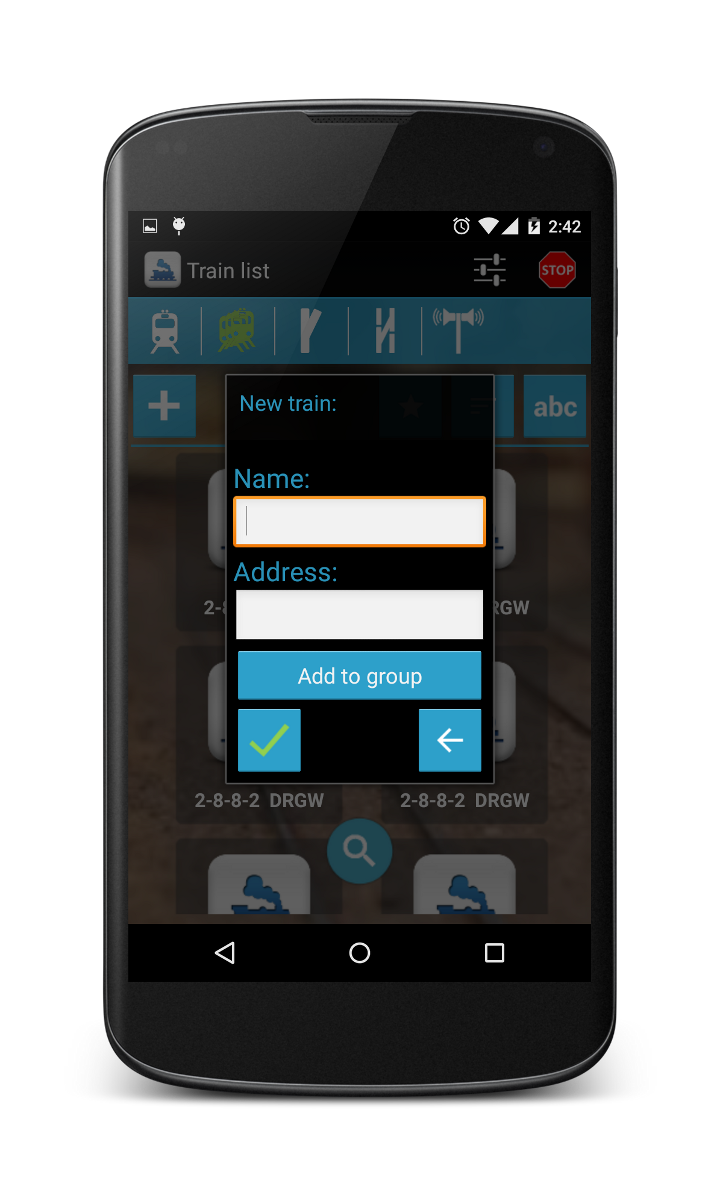
You can assign your locomotives to groups. With this you can filter the train list. In case of adding a new locomotive or changing it there is a button “Add to group”. By pressing this button you can add it to an existing or new group. If you do not select a group it will be assigned automatically to group “All”.


The locomotives downloaded from JMRI will be assigned to the JMRI group if exists. In DigiTrains one train can only belong to one group, so if it is assigned to more groups in JMRI in DigiTrains it will be only showed in the first group.